
Table of Contents
Real Estate Appointment Booking Automation: An 8-Step Workflow for Realtors
A real estate enquiry does not automatically become a conversation. A buyer might ask about a property, a seller might request a valuation, or someone who visited an open house might want to arrange another viewing. But before that conversation happens, the agent and prospect still need to find a suitable time.
When this process depends entirely on back-and-forth messages, scheduling can become another task to manage.
Real estate appointment booking automation creates a more organized way to move qualified prospects from an enquiry to a confirmed meeting. It can share the right booking link, check calendar availability, send confirmations, schedule reminders, and manage changes to an appointment.
The important distinction is that automation should make scheduling easier—not decide that every new lead deserves an appointment.
This guide explains how Realtors can build a practical booking process for buyer consultations, seller meetings, and property showings, including what to automate, what to keep manual, and how to measure whether the system is working.
What Is Real Estate Appointment Booking Automation?
Real estate appointment booking automation is a process that uses a booking calendar, CRM, and automated messages to help prospects schedule meetings with an agent.
A basic process looks like this:
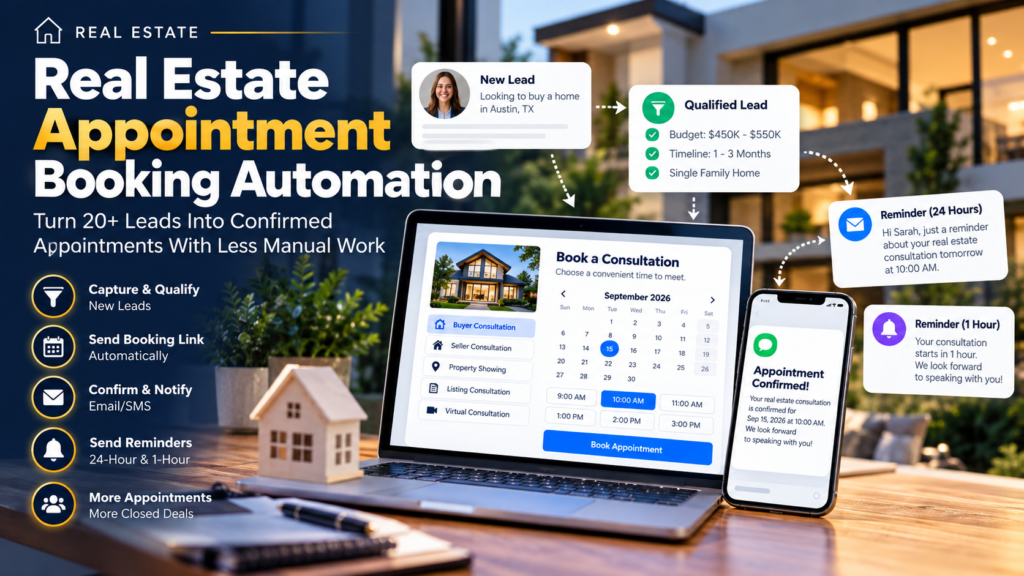
New Enquiry → Initial Response → Qualification → Booking Link → Appointment → Confirmation → Reminder → Consultation
For example, a buyer submits an enquiry about a property in Austin. After the agent or qualification process understands what the buyer needs, the prospect receives a suitable booking option.
The buyer selects an available time. The appointment is added to the calendar, a confirmation is sent, and reminders can be scheduled before the meeting.
The Realtor still handles the conversation, answers questions, and advises the client. Automation manages the repetitive scheduling tasks around that relationship.
Which Real Estate Appointments Should You Automate?
Not every real estate meeting should use the same booking process. The appointment type determines how much information and approval may be needed before confirming a time.
| Appointment type | Suitable booking process |
|---|---|
| Buyer consultation | Let qualified buyers choose an available consultation slot |
| Seller consultation | Offer a dedicated calendar for property or listing discussions |
| Property showing | Allow booking only when property access and agent availability can be confirmed |
| Open-house follow-up | Offer another viewing or a buyer consultation to interested visitors |
| Initial discovery call | Use a short meeting slot to understand the prospect’s requirements |
A useful distinction is property access. A buyer consultation can usually be scheduled based on the agent’s calendar. A property showing may also depend on the seller, tenant, listing instructions, or access arrangements.
If those details cannot be confirmed automatically, collect the preferred time and let the agent approve the showing instead of promising an unavailable appointment.
The 8-Step Real Estate Appointment Booking Workflow
Step 1: Decide Which Leads Are Ready to Book
The first mistake is sending a booking link to every person who submits an enquiry.
Someone downloading a property guide may only be researching. Another person might be ready to discuss a purchase this week. They should not automatically receive identical treatment.
Before offering a calendar, identify the prospect’s basic requirements:
-
Are they buying, selling, or requesting property information?
-
Which location or property are they interested in?
-
What type of property do they need?
-
When are they hoping to make a decision?
-
What kind of conversation would help them next?
You do not need to collect every detail in the first form. Ask only for information that helps determine the next step.
For a more detailed qualification process, see our guide on how to qualify real estate leads.
A simple decision rule could be:
| Lead situation | Next action |
|---|---|
| Requests a property showing | Check property access and offer a suitable viewing time |
| Wants to discuss buying within the next few months | Offer a buyer consultation |
| Wants to sell a property | Offer a seller consultation |
| Is still researching | Start relevant educational follow-up |
| Has not provided enough information | Ask a simple follow-up question |
The objective is to make the booking invitation relevant to the prospect’s actual request.
Step 2: Collect the Information Needed for the Appointment
A booking form should make scheduling easier, not create another long application.
For a buyer consultation, useful fields might include:
-
Name
-
Email address
-
Phone number
-
Preferred location
-
Property type
-
Approximate buying timeline
-
A short message about what they need help with
For a seller consultation, you might ask for the property location, property type, and whether the owner is planning to sell soon or is still exploring options.
For a property showing, include the property reference or listing link so the agent knows which home the prospect wants to visit.
Avoid asking for unnecessary personal or financial information at the booking stage. The agent can discuss additional details during the appropriate conversation.
Step 3: Configure the Booking Calendar Properly
A booking link is useful only when the available times are accurate.
Before sharing it, configure the calendar around the agent’s actual schedule.
Check these settings:
-
Calendar owner: Assign the correct agent or team member.
-
Available hours: Show only times when appointments can genuinely be accepted.
-
Meeting duration: Choose a suitable length for each appointment type.
-
Buffer time: Leave enough time between appointments for travel, preparation, or notes.
-
Advance notice: Avoid accepting appointments that the agent cannot prepare for.
-
Daily limits: Prevent the calendar from filling with more meetings than the agent can handle.
-
Time zone: Make the displayed time clear for prospects and agents.
-
Calendar connection: Check that existing personal calendar events block unavailable slots.
For example, a Realtor might offer 20-minute discovery calls and 30-minute buyer consultations. Property showings may need a different duration depending on travel and access requirements. These are example settings, not fixed industry standards.
If you use HighLevel, its official booking calendar setup guide explains how to create a personal booking calendar, set availability, choose appointment duration, and share a booking link.
Google Calendar also provides appointment schedules. Its booking page can display available times and block slots when the calendar already shows the user as busy. See Google’s appointment schedule guide.
Step 4: Send the Prospect to the Correct Agent or Calendar
A real estate team may have agents handling different locations, property types, or client requirements.
Sending every prospect to one general calendar can create unnecessary handoffs.
A better process uses simple routing rules.
| Enquiry | Booking destination |
|---|---|
| Buyer looking in North Austin | Agent responsible for that service area |
| Seller requesting a listing discussion | Seller consultation calendar |
| Buyer asking about a specific listing | Listing agent or approved showing process |
| General property question | Initial discovery-call calendar |
For a team with several agents who handle the same type of enquiry, a round-robin calendar may distribute appointments between available team members.
However, round-robin assignment is not always appropriate. If a prospect already has an assigned agent, preserve that relationship unless there is a clear reason to reassign the appointment.
The booking system should make it easier to reach the right person, not create confusion about who owns the lead.
Step 5: Send a Clear Booking Invitation
Once the prospect is ready for a meeting, send a booking link with a short explanation.
Avoid sending a link without context. Tell the prospect what the appointment is for and what they can expect.
For example:
Hi Jordan, thanks for sharing your property requirements. The next step is a short buyer consultation so we can understand what you’re looking for and discuss the available options. You can choose a convenient time here: [Booking Link]
The message should match the prospect’s situation.
A buyer should receive a buyer consultation option. A seller should receive a seller consultation option. Someone requesting a property showing should receive a link only after the agent has checked the relevant access arrangements.
Also, do not send repeated booking invitations if the prospect has already scheduled a meeting or asked to stop receiving messages.
Step 6: Automate Appointment Confirmations and Reminders
Once an appointment is booked, the prospect should know exactly what has been scheduled.
A confirmation message should include:
-
Appointment date
-
Start time and time zone
-
Appointment type
-
Meeting location or video link
-
Assigned agent, where relevant
-
Rescheduling or cancellation instructions
Example confirmation email:
Hi Jordan,
Your buyer consultation has been scheduled.
Date: [Appointment Date]
Time: [Appointment Time and Time Zone]
Meeting: [Meeting Location or Link]If you need to change the time, please use the rescheduling link in your booking confirmation.
We look forward to speaking with you.
Reminders can be scheduled based on the appointment type and the prospect’s preferences.
For example:
| Timing | Message |
|---|---|
| Immediately after booking | Appointment confirmation |
| 24 hours before | Reminder with meeting details |
| 1 hour before | Short final reminder |
These timings are examples. A property showing may need different instructions from an online consultation.
Make sure reminders are connected to the appointment itself. If someone cancels or changes the time, the old reminder sequence should not continue sending outdated details.
Step 7: Handle Rescheduling, Cancellations, and No-Shows
A booking system is incomplete if it only handles successful bookings.
Real estate appointments can change. A buyer may have a work commitment, a seller may need another day, or a prospect may simply miss the meeting.
Create a separate process for each situation.
When an appointment is cancelled
-
Update the appointment status.
-
Stop reminders for the cancelled time.
-
Send a brief cancellation confirmation.
-
Offer a rescheduling option when appropriate.
When an appointment is rescheduled
-
Update the calendar with the new time.
-
Send the revised confirmation.
-
Schedule reminders using the new appointment time.
-
Prevent messages containing the old time from being sent.
When a prospect does not attend
-
Mark the appointment as a no-show after checking the actual outcome.
-
Send one polite follow-up message.
-
Include a rescheduling link if appropriate.
-
Create a task for the assigned agent if the prospect does not respond.
-
Stop the recovery sequence if the prospect books again or opts out.
For example:
Hi Jordan, we weren’t able to connect at the scheduled time today. If you’d still like to discuss your property requirements, you can choose another convenient time here: [Booking Link]
Do not assume why someone missed an appointment. Keep the message respectful and give the prospect control over the next step.
In HighLevel, the Appointment Status workflow trigger can be configured for statuses such as New, Confirmed, Cancelled, Showed, and No-show. This makes it possible to build separate workflows for different appointment outcomes. See the official Appointment Status trigger documentation.
Step 8: Follow Up After the Appointment
The booking process should connect with the rest of the lead management system.
After the meeting, update the CRM based on what actually happened.
| Appointment outcome | Suggested next action |
|---|---|
| Buyer attended and wants property options | Move to active buyer follow-up |
| Seller attended and wants to list | Create the next listing-preparation task |
| Prospect attended but needs more time | Add to an appropriate nurture process |
| Prospect cancelled | Keep the record and follow up only when appropriate |
| Prospect did not attend | Use the no-show recovery process |
This is where appointment booking connects with a broader real estate follow-up automation system.
For example, a buyer who attends a consultation and wants to view properties should not continue receiving generic introductory messages. Their next communication should reflect the conversation and the agreed next step.
The CRM should show whether the appointment was booked, attended, cancelled, or missed. That information makes future follow-up more relevant.
Example: How One Buyer Moves Through the Booking System
Consider a hypothetical buyer named Jordan.
Jordan submits a website enquiry about homes in Austin and says that he hopes to move within the next two to three months.
Here is how a booking workflow could handle the enquiry:
| Stage | What happens |
|---|---|
| Enquiry received | CRM creates or updates Jordan’s contact record |
| Initial response | Jordan receives an acknowledgement |
| Qualification | The system identifies the enquiry as a buyer request |
| Routing | The enquiry is assigned to the appropriate buyer agent |
| Booking invitation | Jordan receives the buyer consultation calendar link |
| Appointment booked | The selected date and time are saved |
| Confirmation | Jordan receives the meeting details |
| Reminder | A reminder is sent before the consultation |
| Consultation attended | The agent updates the appointment status |
| Next action | Jordan moves into the appropriate buyer follow-up process |
If Jordan does not attend, the agent can mark the appointment as a no-show and the relevant recovery workflow can send a polite rescheduling message.
This example illustrates a possible process. The actual steps depend on the CRM, calendar configuration, and the real estate team’s working practices.
How to Build the Workflow in GoHighLevel
GoHighLevel can connect booking calendars with CRM records and appointment-related workflows.
A basic setup can be organized into three parts.
1. Create the booking calendar
Go to Calendar settings and create a suitable calendar. For a one-to-one consultation, choose a personal booking calendar, assign the host, set the appointment duration, and configure availability.
Connect the agent’s personal calendar and check that existing events are preventing conflicting bookings.
2. Create the booking workflow
For prospects who book through a calendar link, use the Customer Booked Appointment trigger. You can then configure relevant actions such as sending a confirmation, notifying the assigned agent, and scheduling reminders.
One important technical detail: HighLevel’s Customer Booked Appointment trigger is designed for appointments booked independently by the customer through a booking link. A booking manually created by a team member does not activate that same trigger. If your team also books appointments manually, test and configure a suitable appointment-status workflow for that process.
See HighLevel’s Customer Booked Appointment trigger guide.
3. Create separate appointment-status workflows
Use appointment status conditions to handle cancellations, attendance, and no-shows.
For example:
-
Confirmed: Send the relevant confirmation or preparation details.
-
Cancelled: Stop reminders and provide a rescheduling option.
-
Showed: Send a follow-up message and update the CRM.
-
No-show: Start a polite recovery process.
Keep the workflows focused. One well-tested booking process is more useful than several overlapping automations that send conflicting messages.
For a broader platform walkthrough, see our guide on automating real estate lead follow-up using GoHighLevel.
How to Measure Appointment Booking Performance
A calendar can show how many appointments were scheduled, but that number alone does not explain whether the process is working.
Track the complete journey.
| Metric | Calculation |
|---|---|
| Booking rate | Booked appointments ÷ qualified leads sent a booking link × 100 |
| Show rate | Attended appointments ÷ appointments due × 100 |
| No-show rate | No-show appointments ÷ appointments due × 100 |
| Appointment-to-opportunity rate | Opportunities progressed ÷ attended appointments × 100 |
For show rate and no-show rate, define “appointments due” consistently. For example, you can calculate them using attended appointments plus no-shows, while reporting cancellations separately.
Illustrative example—not an industry benchmark:
Suppose a Realtor sends booking links to 24 qualified prospects.
-
12 prospects book an appointment.
-
9 attend.
-
3 do not attend.
The booking rate is:
[
\frac{12}{24}\times100=50%
]
The show rate is:
[
\frac{9}{12}\times100=75%
]
The no-show rate is:
[
\frac{3}{12}\times100=25%
]
These numbers do not prove that the system is good or bad on their own. They help identify where prospects are dropping out.
If many qualified leads receive a booking link but few schedule, review the booking invitation, available time slots, and calendar experience.
If people book but do not attend, review the confirmation, reminders, meeting instructions, and rescheduling process.
Common Appointment Booking Automation Mistakes
1. Sending a Booking Link to Every New Lead
Not every enquiry is ready for a meeting. Qualify the prospect first and offer an appropriate next step.
2. Creating Too Many Calendars
Separate calendars only when appointment type, duration, host, or availability genuinely differs. Too many choices can confuse prospects and make maintenance harder.
3. Ignoring Calendar Availability
If personal calendar events are not synchronized correctly, prospects may book times when the agent is unavailable.
4. Forgetting Time Zones
This matters when agents and prospects are in different regions. Make the appointment’s local time clear in the confirmation.
5. Sending Reminders After a Cancellation
A cancelled or rescheduled appointment should not continue through an outdated reminder sequence. Test the workflow’s exit and re-entry behavior.
6. Treating a Booking as a Completed Meeting
A scheduled appointment is not the same as an attended appointment. Update the CRM after the meeting so reports and follow-up actions reflect what actually happened.
7. Never Testing the Full Booking Journey
A workflow can look correct in the CRM and still fail when a real prospect uses it. Test the process from the booking page through the final follow-up.
Appointment Booking Automation Testing Checklist
Before making the calendar available to prospects, test these scenarios:
-
A new buyer enquiry enters the correct workflow.
-
A seller enquiry receives the correct booking option.
-
The booking page displays the correct available times.
-
Existing calendar events block unavailable slots.
-
The correct agent receives the appointment.
-
The prospect receives a confirmation with the correct date and time.
-
Reminder messages contain the correct appointment details.
-
A cancelled appointment stops its old reminders.
-
A rescheduled appointment uses the new time.
-
A no-show enters the correct recovery process.
-
An attended appointment moves to the correct follow-up stage.
-
The process works on a mobile device.
Use a test contact and test appointment before activating the workflow for real prospects.
Frequently Asked Questions
What is the main purpose of real estate appointment booking automation?
Its purpose is to make it easier for qualified prospects to schedule buyer consultations, seller meetings, or property viewings. It can also handle confirmations, reminders, and appointment changes.
Should every real estate lead receive a booking link?
No. Some leads need more information before they are ready to meet. Qualify the enquiry first, then offer the most relevant appointment type.
Can appointment booking automation reduce no-shows?
It can help make appointments easier to remember through confirmations and reminders. However, it cannot guarantee attendance. Clear meeting details and a simple rescheduling process are also important.
Can Realtors automate property showings?
They can automate parts of the process, such as collecting a preferred time, checking agent availability, and sending confirmations. However, property access and seller or tenant arrangements may still require manual approval.
Is GoHighLevel required for appointment booking automation?
No. A booking calendar such as Google Calendar’s appointment schedules can support basic scheduling. A CRM platform such as GoHighLevel is useful when you also want to connect appointments with lead records, agent assignment, follow-up workflows, and appointment statuses.
What happens when someone cancels or misses an appointment?
The system should stop reminders for the original appointment. Depending on the outcome, it can send a cancellation confirmation, offer a new booking time, or start a polite no-show follow-up.
Final Thoughts
Real estate appointment booking automation is most useful when it removes unnecessary scheduling work without making the client experience feel robotic.
Start with a clear process: understand the enquiry, qualify the prospect, send the correct booking option, confirm the appointment, and follow up based on the actual outcome.
Then test cancellations, rescheduling, reminders, and no-shows before relying on the system.
The goal is not to turn every lead into a calendar booking. It is to make the next conversation easier to arrange for the prospects who are ready to have one.